Accuracy matters. Whether in baking, construction, accounting or meeting someone at a certain place, "something like" is usually not good enough. And when dealing with mapping both AdventistGiving accounts and names, accuracy is all-important.
When John Smith donates to “Tithe” and “ADRA” in a Sabbath envelope, but his donation is posted to John Small for “Church Budget” and “Local Community Services,” it is a problem. But it is just one envelope, and the next time the treasurer will hopefully get it right. On the other hand, if a John Smith donation is mapped to John Small in AdventistGiving, then from that day on, every time John Smith donates, it is automatically posted to John Small. And if his donation to “Tithe” is mapped to local “Church Budget,” then every Tithe donation from every AdventistGiving donor will also be posted to Church Budget, which can add up to hundreds or thousands of dollars of inaccurately recorded donations.
The upside is that once an AdventistGiving Donor or Account is mapped correctly, Jewel remembers and will post accurately from then on. And, fortunately for us, our intrepid Jewel programmer has made it easier than ever to import AdventistGiving donations into Jewel without errors.
NOTE: There are four ways to check the accuracy of your current mappings and to ensure accurate mapping in the future. They take just minutes, but can save hours in the long run. Not only will your accounts be mapped correctly, but importing will take less time, since error messages during import are almost always due to mapping irregularities. In addition, you'll avoid the need to correct and reissue inaccurate end-of-year donor receipts.
¶ The 5-digit codes
There are around 290 different conference, union, division and world codes available for donations in AdventistGiving. And some of them have similar names, which is confusing when it comes to mapping. Examples are:
- “Women’s Ministries Conference,” “Women’s Ministries NAD” and “Women’s Ministries GC”
- “Conference Disaster Donations” and “Disaster and Famine Relief”
But now there is no longer a need to play “Guess which account the donor chose!”
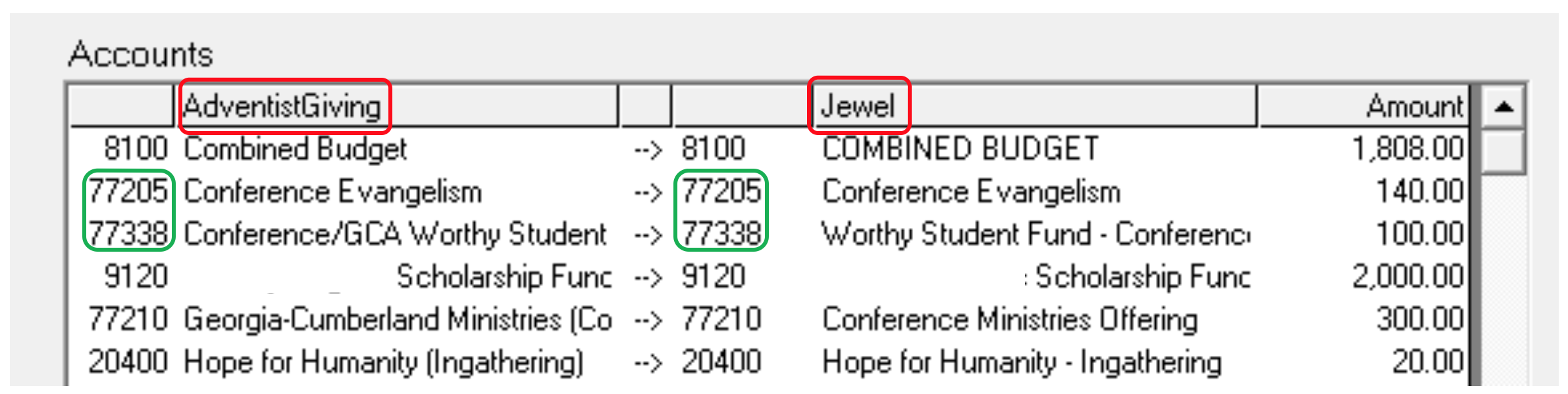
The 5-digit conference codes used in AdventistGiving are the same codes given to Jewel by most conferences for adding conference funds.
Now you can easily match each AdventistGiving code to the exact Jewel code, making it difficult to pick the wrong account when mapping. And if your local codes in AdventistGiving don’t match your local codes in Jewel, you can use this tutorial to fix them.
¶ The Accounts List
The Accounts List report in Reports & Graphs lists all your Conference and Local Funds and shows where they have been mapped in AdventistGiving.
You can sort by ID# or alphabetically.
Take a few minutes and compare the Jewel and AdventistGiving “Account” columns.
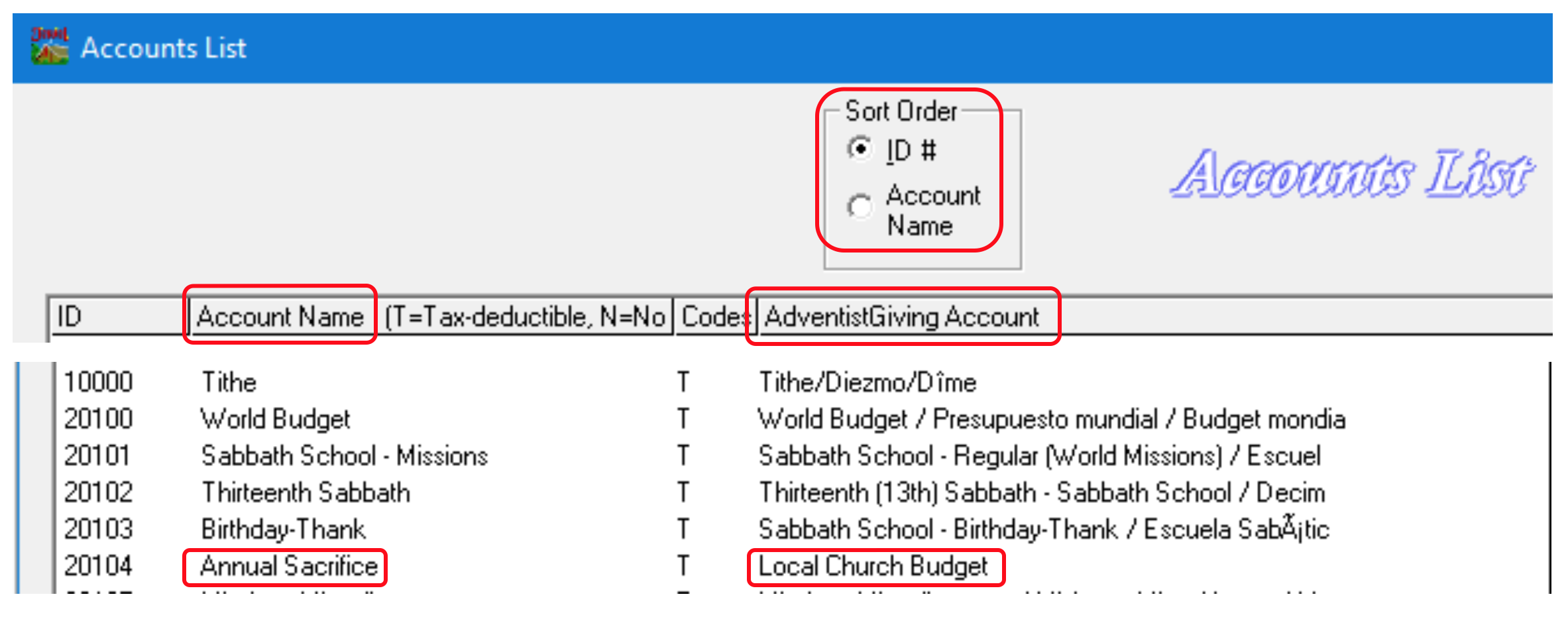
If you see one that is mapped incorrectly (such as the last one above), first print the Accounts List report, so that you have a record of what was mapped where. Then click on the inaccurate mapping, which takes you to the “Edit Accounts” screen. Check the Edit box at the top of the center column, and click “Clear” at the bottom of the column. That will “unmap” the fund. The next time someone donates to it, it will be red, and you will have a chance to map it again, correctly this time.
Additionally, contact your support person with the names/IDs of the accounts involved, as donations that were mapped incorrectly may need to be corrected.
¶ Names List
The Names List report in Reports & Graphs lists how AdventistGiving donor Names have been mapped to your Jewel donor Names. It works the same way as the “Accounts” list.
To make the search easier, click on “Donors Only”.
Narrowing the column widths so the Jewel Names and the AdventistGiving Names are closer together is helpful as well. (Grab the bar between two columns and drag it.)
If you find an error, write down the ID and name of the donor and contact your support person so they can help you fix the mapping, because any previous donations that were mapped incorrectly will also need to be corrected.
¶ Remap during the import
While you are importing, it is a good idea to take a few seconds to compare the two sides of the mapping chart. If you see an account that is mapped incorrectly, you can remap it right then. Even if the letters are not red, you can click on the incorrectly mapped line, then click “Map Account”. This takes you to a screen where you can edit the existing mapping. When finished, click “OK” to save. You will be returned to the import mapping screen where you can see that the AdventistGiving account and the Jewel account now match. Also, you should contact your support person with the names/IDs of the accounts involved, as donations that were mapped incorrectly may need to be corrected.
NOTE: If your “Donation Codes” in Adventist Giving don’t match the Local Fund “ID Numbers” in Jewel, use this tutorial to fix them.
Click here for more topics related to AdventistGiving Offerings
Click here for more topics related to Cleaning Up and Ensuring Accuracy
The original version of this page was provided to Jewel by the Georgia-Cumberland Conference Audit Team. Created by Linda McCabe.