NOTE: Before the year is closed, it is good church finance to zero out expense funds with negative balances, things such as office expense, utilities and facility maintenance, and, if applicable, to reclaim excess amounts of church budget allocations from any local expense accounts that received more than they needed. You will start the new year with more clarity, because your Church Budget ending balance will be more accurate. This page describes manual zeroing out. Jewel can help you by doing some of this process automatically. See Maintenance / Properties / General tab.
- Since every church’s local fund list and budget allocation process is different, we can give you principles and show you examples, but it will be up to you and your church board to decide how to apply those principles. In these examples, the account names are blank, but they are all local expense funds such as supplies, maintenance and utilities.
- If your church has never closed the year this way before, and ending balances just continue to grow or go deeper in the negative year after year, it would be a good time for you to suggest this practice to your board and explain to them how it works.
This transfer process should occur just before you print the reports and close December – everything else in December should be done first. It consists of transferring Church Budget or reserve type funds into the expense accounts that have negative balances, so that they end the year with a zero balance. And transferring excess Church Budget funds out of accounts that ended the year with more than they needed, so that all the expense type local funds end the year with a zero balance.
¶ Effect of Negative Balances on the Financial Summary
So that you can visualize it, let's look at two financial summaries, one before the end-of-year transfers, and just below it, in the second example, you see it after the transfers. Look at the difference in the “Ending Balance” column.
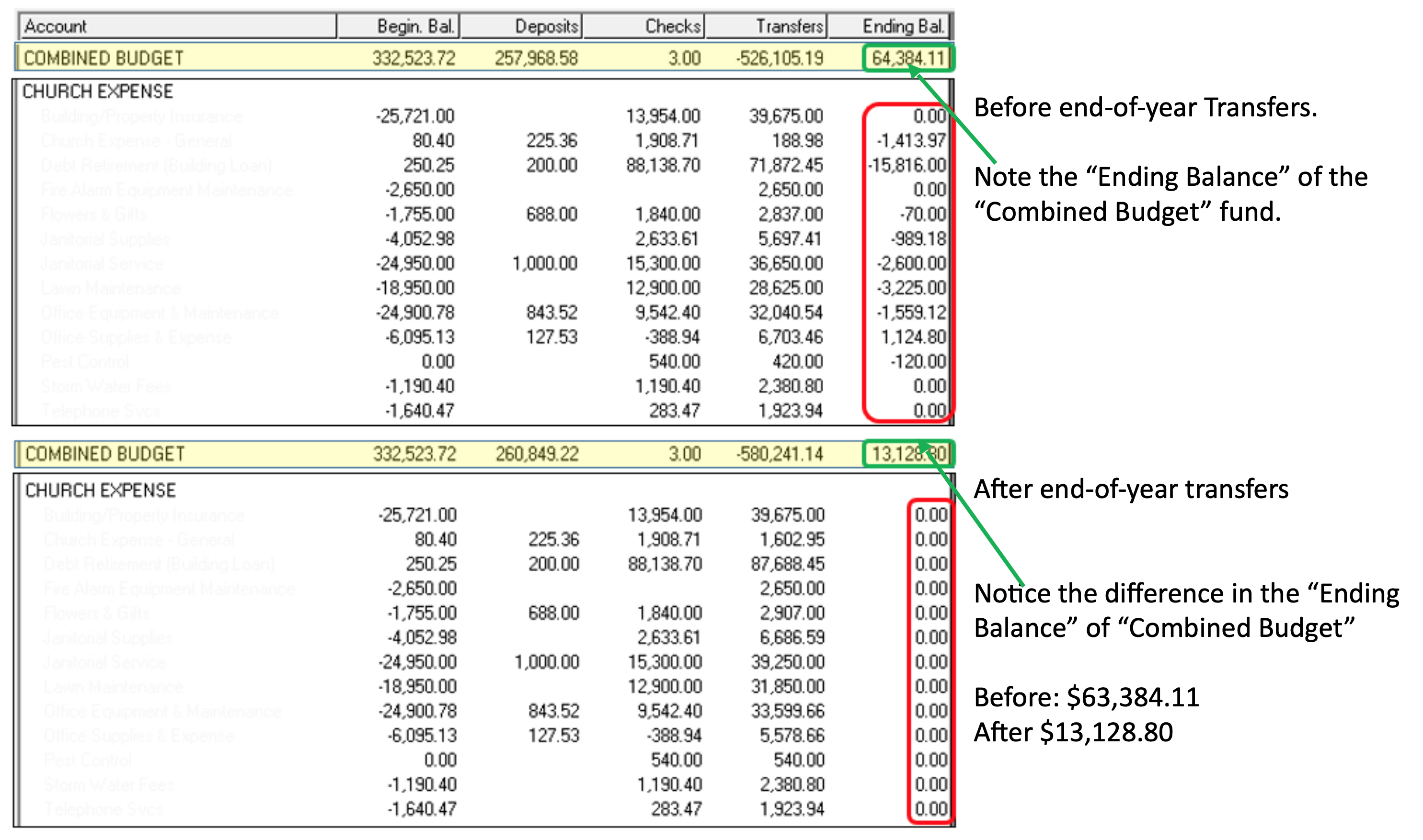
Before the transfers, it looked like there was much more in Combined Budget than there actually was. Much of it had already been spent – as evidenced by all the negative ending balances. But the Combined Budget total did not reflect that fact. Now the Ending Balance is much more accurate. And seeing the “after” figure could make a difference in future plans that your board makes.
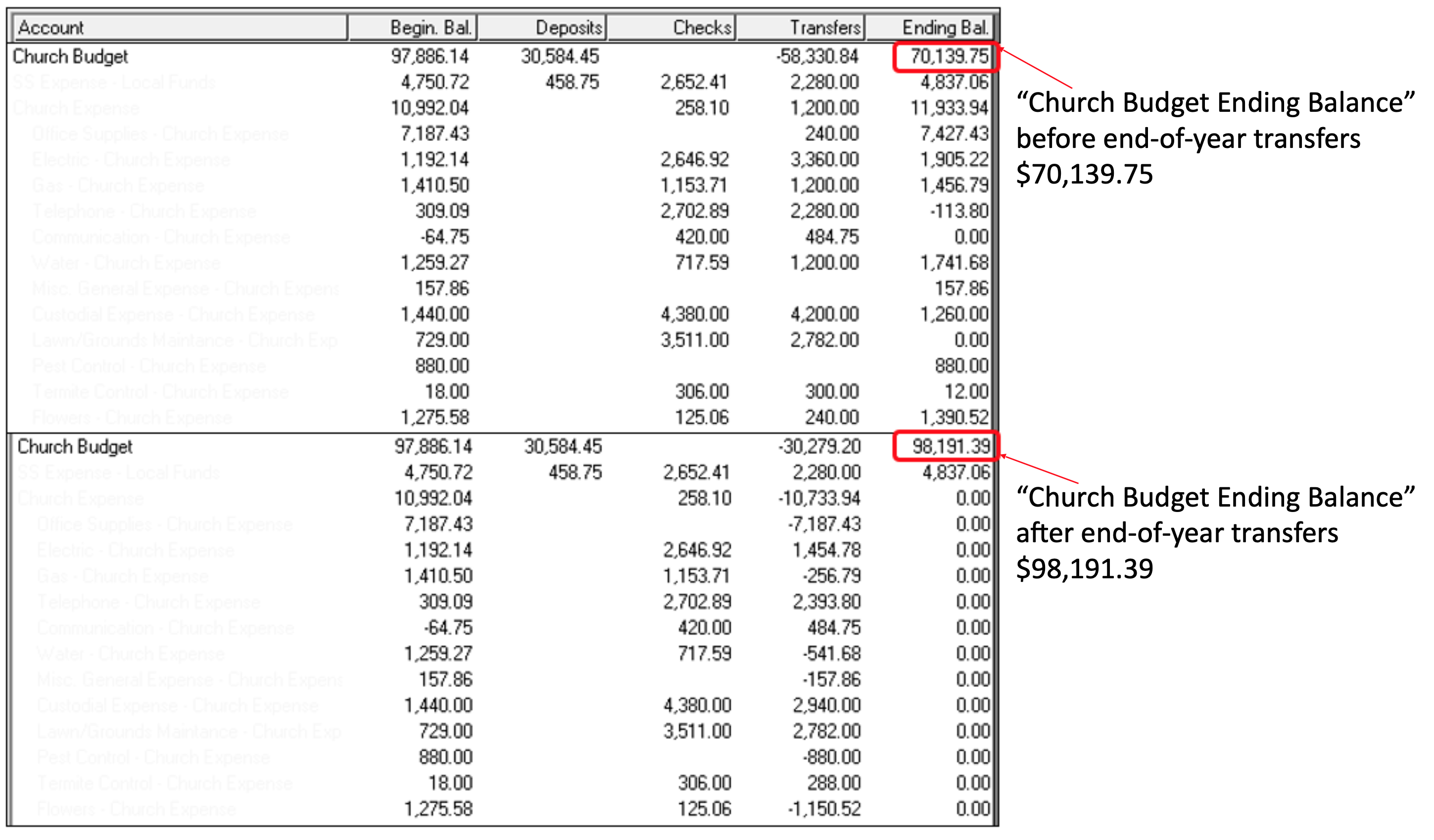
This next chart is a financial summary that has very few negative balances at the end of the year, but has a large amount of excess Church Budget funds that have been allocated monthly into various accounts but not needed. Here you see before and after. This church will have a much better idea of their financial picture if they do end-of-year transfers.
¶ Effect of Over-Allocation on Financial Summary
Note: if your church does not use budget allocations, or has not made transfers through the year from Church Budget to fund various Local Funds, this section will not apply to you.
¶ How to Zero Out Year-end Negative Balances
Now that you have seen the benefits of end-of-year transfers, let’s learn how to do it.
NOTE: The simplest method and the one that gives the most clarity to the board is to make two separate transfers, one to zero the negatives and another to reclaim the excess funds.
- Start with printing a copy of your Financial Summary – Detail for December. You will use it to make notes which will help when you are making transfers.
- On that financial summary, underline the local expense accounts that
are candidates to be zeroed out. Use two colors. Many use red for
negative balances, and green for the ones that have excess Church Budget
funds.
- Let’s start with the negative balances. We are mostly talking about regular church expenses like utilities, supplies, and expenses paid monthly like pest control or security services. If a ministry has overspent and the board wishes to leave it in the negative and let future allocations take care of the deficit, that is fine. Or they can authorize you to zero it out from Church Budget.
- Once you have chosen all the expense account possibilities and underlined them, you are ready to begin.
- Click on Transfer Funds on the Jewel Home Page to create a transfer:
- The “Date” will be the last day of the current year: 12/31/xx
- The “Memo” will say something like “End-of-year 20xx to zero negative accounts (or balances)”
- Click on “Transfer FROM” since we are moving funds from Church Budget to multiple accounts.
- The “From Account” is “Church budget.”
- Leave the” Amount” box blank at first. Jewel will come up with a “Running Total” that we can put there once we have finished with the entries.
- One by one, enter all the accounts that have negative balances – the ones you underlined in red, along with the amount needed to bring them back to zero. If the “Financial Summary” says -$371.40, then the amount to transfer should be $371.40.
- Once all are entered, find the “Running Total” and enter it into the Church Budget “Amount” box.
- Click the green “OK √” to save and leave.
- Go back to the “Financial Summary” and see if all the negative
numbers in the “Ending Balance” Column are now zeros.
- If you have missed an amount or entered something incorrectly, go back to “Transfer Funds,” click on the red arrow that says "Previous" to get back to the transfer you just made, then click on "Edit Transfer" and fix the numbers until everything on the “Financial Summary” is as you want it.
NOTE: if your church has not used the “Budget Allocations” feature, or has not made transfers through the year to various Local Funds, you can stop here. You do not need this next step.
¶ How to Reclaim Excess Budget Allocations
Let’s go through a transfer to reclaim excess Church Budget funds. This has to do with the Local Funds that you underlined in green. The main rule is “Don’t Move Trust Funds.” (See here and here for more info.) Contact your auditor if you would like them to verify your choices.
- There are some church expense type funds that should be left with a balance, even if it is “Church Budget” funded. These would be “Property and Liability Insurance” and any “Building Repair and Maintenance” type funds. Those can have large expenditures on an annual or occasional basis, so they need to be left to accumulate.
- Most churches leave the different local ministries and evangelism funds alone. Unless, of course, it is a ministry that has received budget allocations for years but has never used them. In that case, moving those allocations back into “Church Budget” where they can actually be used is a wise move.
- Once you have chosen all the reclaiming possibilities and verified that they are not Trust Funds, you are ready to begin zeroing out the ending balances.
- Click on Transfer Funds and fill it out like this:
- The “Date” should be December 31 of the current year.
- “Memo” will read “End-of-year 20xx (or current year) to reclaim excess Church Budget funds.”
- Click on “Transfer To a single account” since we are moving funds from multiple accounts back to church budget.
- The “To” account is Church Budget.
- Again, leave the “Amount” box blank until Jewel totals all the transfers.
- Enter all the accounts that have positive balances – the ones you underlined in green, along with the amount needed to bring them back to zero. If the Financial Summary says $14.62, then the amount to transfer should also be $14.62. When you finish one line, click “Enter” for a new one.
- Once all are entered, the “Running Total” can be entered into the Church Budget “Amount” box.
- Click “OK √” to save and leave.
- Go back to your Financial Summary and see if everything that you underlined has a zero balance. If you need to edit either transfer, go back to “Make Transfers” and click on the red “Previous” arrow to find the one that needs to be edited. Click on “Edit Transfer” and make the changes.
- Click the green “OK √” to save the changes and leave.
- Go back to Jewel Home Page and continue following the NextStep button to close the year.
Click here for more topics related to Cleaning Up and Ensuring Accuracy
The original version of this page was provided to Jewel by the Georgia-Cumberland Conference Audit Team. Created by Linda McCabe.