When an offering is returned for non-sufficient funds, because the donor changed their mind, or any other reason, use the NSF Check Reversal feature of Jewel. An NSF Check reversal can be performed at any time, even months after the offering was received.
We say "check", because that's the type of offering that historically has most often "bounced", but electronic offerings can also be returned. All electronic offerings should be entered as "Checks" rather than as "Cash" so that if they are returned, you can use Jewel's NSF Check Reversal feature to easily reverse the offering.
Three things have to happen to fix a returned offering.
- The money has to be “un-deposited” from your checking account in Jewel.
- The donation needs to be removed from the donor’s record.
- Any Conference funds that have already been remitted from that donation need to be returned to your church from the Conference.
Fortunately, Jewel's NSF Check Reversal feature will do all three of these for you, automatically.
¶ Record a Returned Offering
Note: If you are importing your AdventistGiving offerings, either directly or via Import from a File, then you don't need to do anything. Jewel will automatically take care of the returned offering when you import your deposit report. Do not make a separate entry for the returned offering. If you enter AdventistGiving manually, you must use the special instructions at this link, not the instructions below.
- Note the number and amount of the check in question.
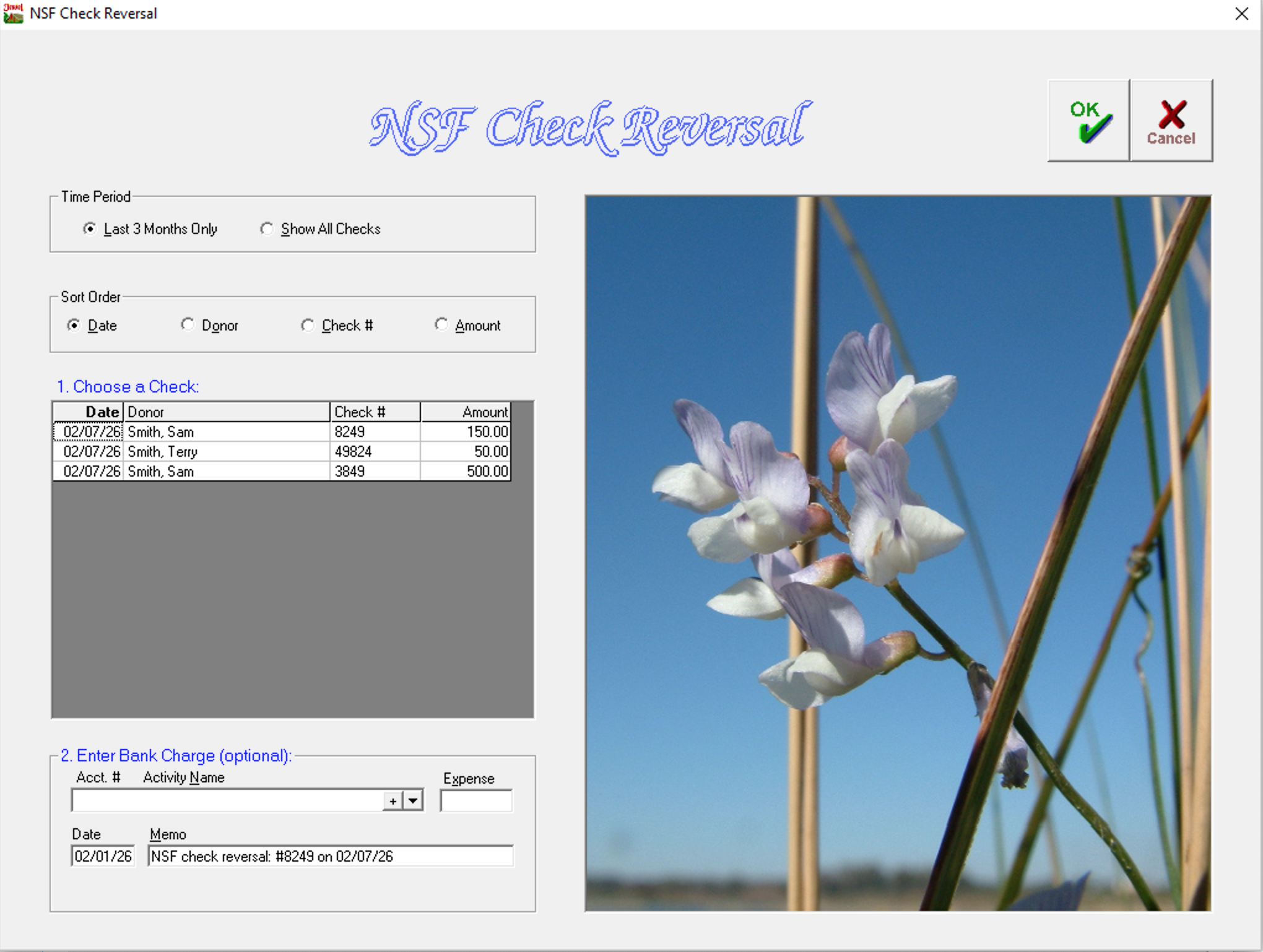
- Go to Offerings / NSF Check Reversal.
- Use the Time Period and Sort Order options to find the offering you need to reverse.
- Select the offering you are looking for. Make SURE you select the correct one!
- If your bank has charged you a service fee, enter it in the “Enter Bank Charge” section on the page. Enter the fund where you post Bank Fees in the "Activity Name" box, and the bank fee amount in the "Expense" box. If there is no service charge, just leave those lines blank.
- Verify that the Date and Memo accurately record what you are doing.
- Click on OK and confirm the NSF Check Reversal. That's it!
Jewel will delete that donation from the donor’s end-of-year receipt, and if there were Conference Funds in that donation that have already been sent to the conference, Jewel will get them back for you in your next remittance check. You don’t have to do anything else to make it happen. Jewel takes care of it all.
¶ How to Reconcile a Returned Offering
When the Bank Statement comes and it is time to reconcile, you will find the adjustment(s) on your bank statement, but their location will vary, depending on your bank.
In Jewel, the returned offering amount will show up as a negative amount in the deposit section of the bank rec page. If your bank charged a bank fee, it will show up in the check section of the Jewel bank rec page. Both will have “NSF check” in the memos so they are easy to locate. Find them and check them off.
Note: These entries will be mixed up with all your other checks and deposits, and you may have to click on “More Deposits” or “More Checks” to find them, because they may be dated in a more recent month and may be clear down at the bottom, but they are there.
If you followed these instructions but don’t see the entries on your Bank Rec page, contact tech support. Do not use the “New Entry” button to add them in.
¶ IMPORTANT
- Use the Jewel NSF Check Reversal feature rather than creating a General Journal Entry for the amount of the check and the bank fee. If you create your own “fix,” the donor’s end-of-year receipt will be inflated and the church will likely pay more tithe to the conference than they should. Please don’t do it that way.
- It is important to always enter the correct check number when entering offerings. It will save time and aggravation when NSF checks happen. And it will post correct information to the end-of-year tax receipt.
- Enter all electronic donations as checks (rather than cash), so that you can use the NSF Check Reversal feature if they are returned. The check number can be a transaction number if you have one, or the name of the app used to make the donation.
- Sometimes donors put 2 or more checks in one tithe envelope, or make multiple electronic donations in the same period. Do not combine them and enter them as one, or you will not be able to use the NSF feature if one of them is returned. Create a different envelope in Jewel for each check or donation.
¶ Writing a Check to Return a Donation
If the donor is requesting that the church return their donation, follow the instructions here.
Click here for more topics related to Entering Common Transactions