¶ Counting the Offering
Before you can enter an offering in Jewel, the offering must be counted. This is a critical step that must be done following Internal Controls to prevent dishonesty, help avoid accusations, and to catch potential counting errors. Dual Counting--having two people present whenever an offering is being counted--is a critical part of those controls. If you have any questions regarding safe, correct procedures for counting the offering, please consult your conference treasury or auditing department.
- Each weekly offering should be counted, documented and deposited separately from any other weekly offering. It should be dated with the Sabbath date that it was collected. Other offerings and deposits should be entered into Jewel separately from Sabbath offerings. Do not combine deposits/offerings, either at the bank, or in Jewel.
- Each weekly offering should be counted by more than one person - both in the room at the same time. This protects the funds and the person counting–from both temptation and accusation.
- Create separate tithe envelopes giving the totals for each “Loose Offering”. If someone turns in a check without an envelope, make one up for it, with the donor name, amount and check number. Every part of the deposit should have an accompanying tithe envelope, and the total of all the tithe envelopes should match the total of the deposit to the bank.
- Once counted and documented, the deposit should be taken to the bank by Tuesday at the latest, no more than three days after it is collected.
¶ Start New Offering - Recording Offerings in Jewel
All through the month, offerings are entered into Jewel using the NextStep "Start New Offering." If you need to enter an offering, but your NextStep does not say "Start New Offering", click here.
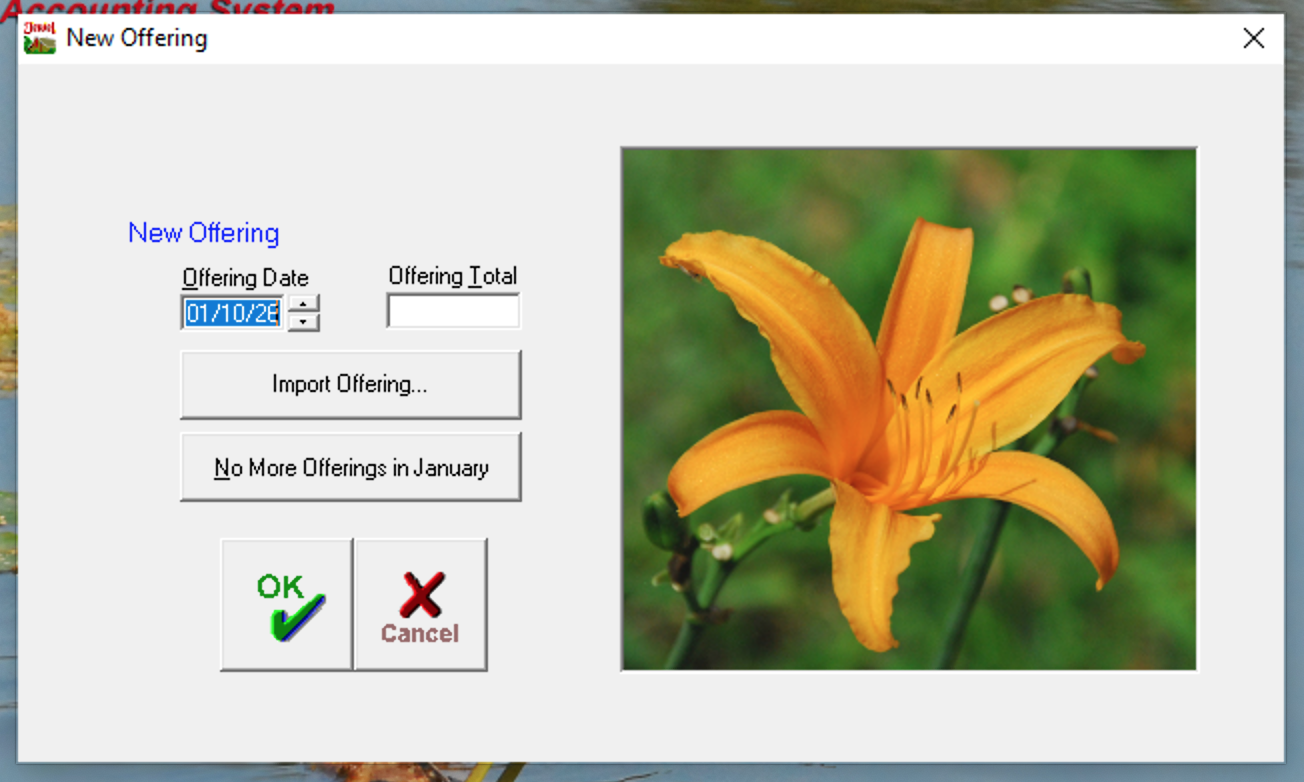
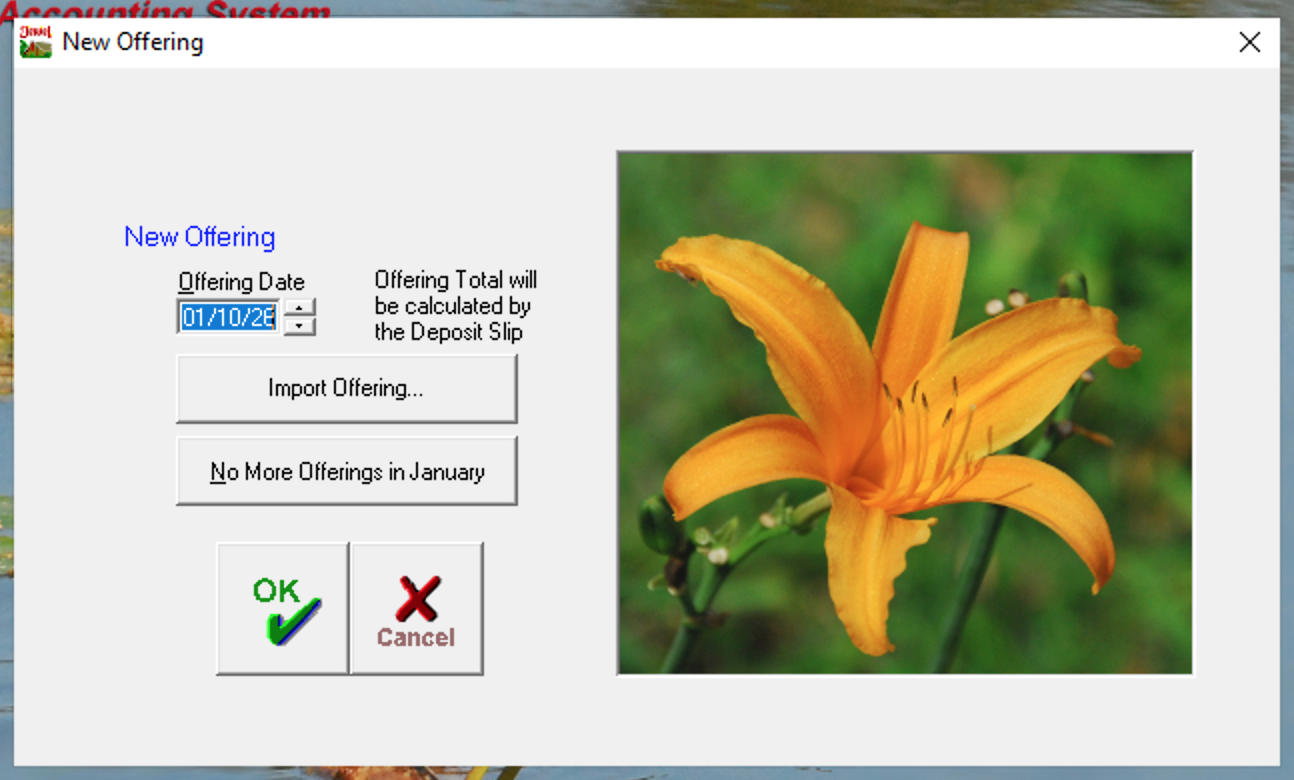
Click the NextStep "Start New Offering". In the window that opens, select the date of the offering you are entering. You can use the up and down arrows to select the date, or type in the date you need. Your next step will depend on whether you have the Deposit Slip feature turned on or not.
¶ Deposit Slip
NOTE: The Deposit Slip feature can be toggled on and off by going to Maintenance / Properties / General tab.
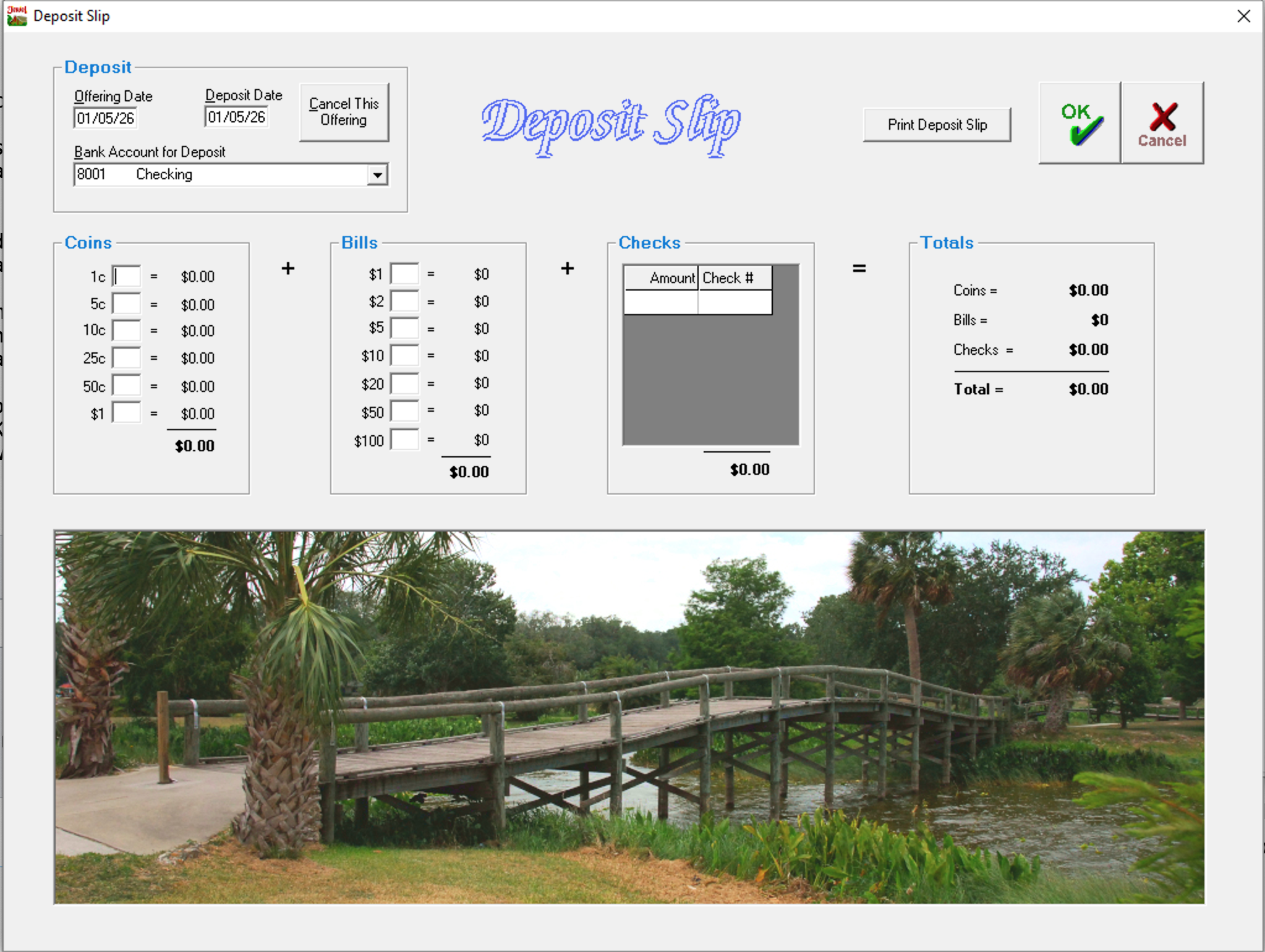
The deposit slip in Jewel can be used as a re-count of all of the cash and checks to ensure that no mistakes were made in the first steps of counting. You will come to a grand total, which should equal the total already arrived at by adding together the envelope totals. Jewel can also print the deposit slip to take to your bank.
Enter in the total number of pennies, dimes, dollar bills, etc in their respective boxes. Then type in each check's amount and number, pressing enter or tab to get a new field. Entering the check number may be optional (depending on your settings in Properties), but provides a better record on year-end donation receipts. As you see on the right-hand side of the screen, Jewel calculates a grand total for you. Compare this with the totals from the previous counting, ensuring that they are equal. Once finished, you can click Print Deposit Slip to use when depositing the money in the bank. When you have finished and printed, click OK.
¶ Contribution Entry
In this step, you will be entering the data from each individual tithe envelope. Jewel will use this data to make financial reports (thereby keeping track of budget and cash flow) and to make receipts at the end of the year for each donor.
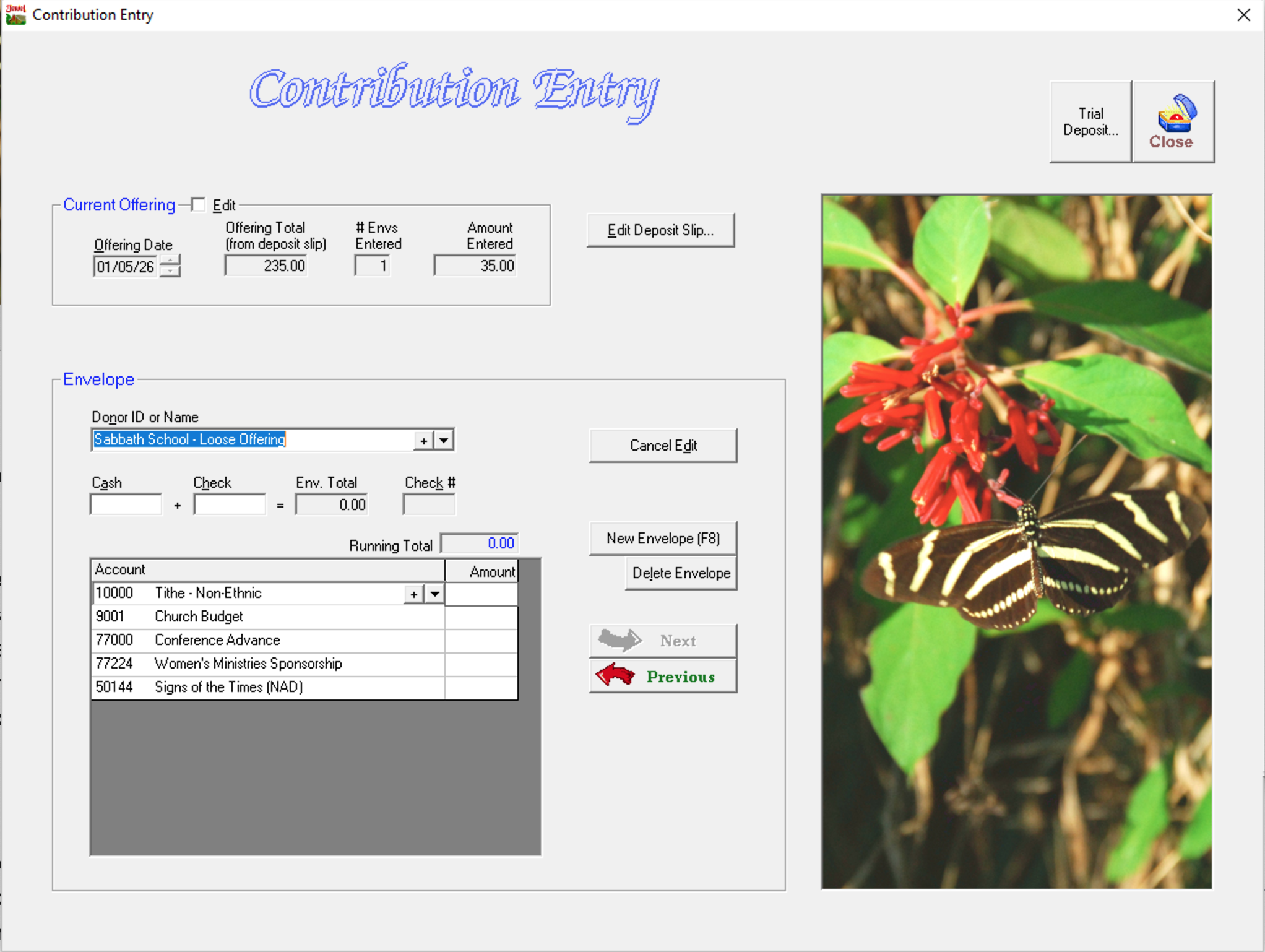
Take a moment to look at the "Contribution Entry" screen below. You will find these features.
- Current Offering gives the offering date and total that you have entered, as well as how many envelopes from this offering have been entered so far, and the total of those envelopes. You can click the Edit box and make changes to any box that is not greyed out. If you are using the Deposit Slip, click the Edit Deposit Slip button to the right of this box to edit the Offering Total.
- Cancel This Offering only shows if no envelopes have been entered. Once an envelope has been entered, that box disappears. Click here for more information.
- The Envelope section is for entering individual donation "Envelopes." This section contains the envelope information, like total amount, donor name, and what funds they donated to. The Running Total at the top of the Amount column gives the total entered so far. Along the right side there are options for editing envelopes, creating new envelopes, deleting envelopes, and arrows to move backward and forward through the already-entered envelopes.
¶ How to Enter Envelopes in Jewel
Follow these simple steps for entering envelopes. You can use your mouse to navigate between fields or just press the "Enter" or “Tab” key on your keyboard when you are ready to move to the next field or box.
- Start typing the donor's last name. As you enter the first few letters of the name, Jewel will auto-fill the rest. If there are multiple donors with the same last name, you can scroll through them to find the correct first name using the up and down arrow buttons on your keyboard or click the down arrow to see the list of names. If the name doesn’t appear when you start entering it, use the little plus sign at the end of the text box to go to your “Names” list and search for it. If you are sure it's a new name, you can add it, then click OK to return to Contribution Entry. (Click here for advice on avoiding duplicate names.)
- Enter the amount of Cash and/or Checks included in this envelope. If you are using the Deposit Slip feature, Jewel will transfer the check numbers to the envelopes for you. Otherwise, enter them yourself. (Tip: always write the check number on the tithe envelope during the counting / verification process.)
- Choose the account donated to. The "Account" field is where you post the offering to the appropriate fund: Tithe, Church Budget, etc. Enter the account, then press the "enter" or "tab" key to move to the "Amount" field where you will enter the amount that was donated to that particular account. If the envelope contains more than one account, pressing "enter" or "tab" on your keyboard will give you another line to fill in.
NOTE: If the donor has written in something that you don’t have in Jewel, like “Pink Carpet for Sanctuary”, don’t create a new local fund to post the donation. Only the board can give that authorization. Also, If you cannot read the donor’s writing or their arithmetic is incorrect, don’t guess. Contact the donor and ask their wishes.
- Press Enter when your account Running Total matches the Envelope Total, and Jewel will automatically start a New Envelope. Jewel will not allow you to move to a New Envelope until those two totals match.
- Return to the first step and start typing the last name of the next donor, until you finish your stack of tithe envelopes.
- Jewel will prompt you to proceed to Make Deposit once the Amount Entered (the total of all envelopes entered) equals the Offering Total.
- If you have entered all the envelopes but your totals don't match, continue to Trial Deposit below.
¶ Trial Deposit
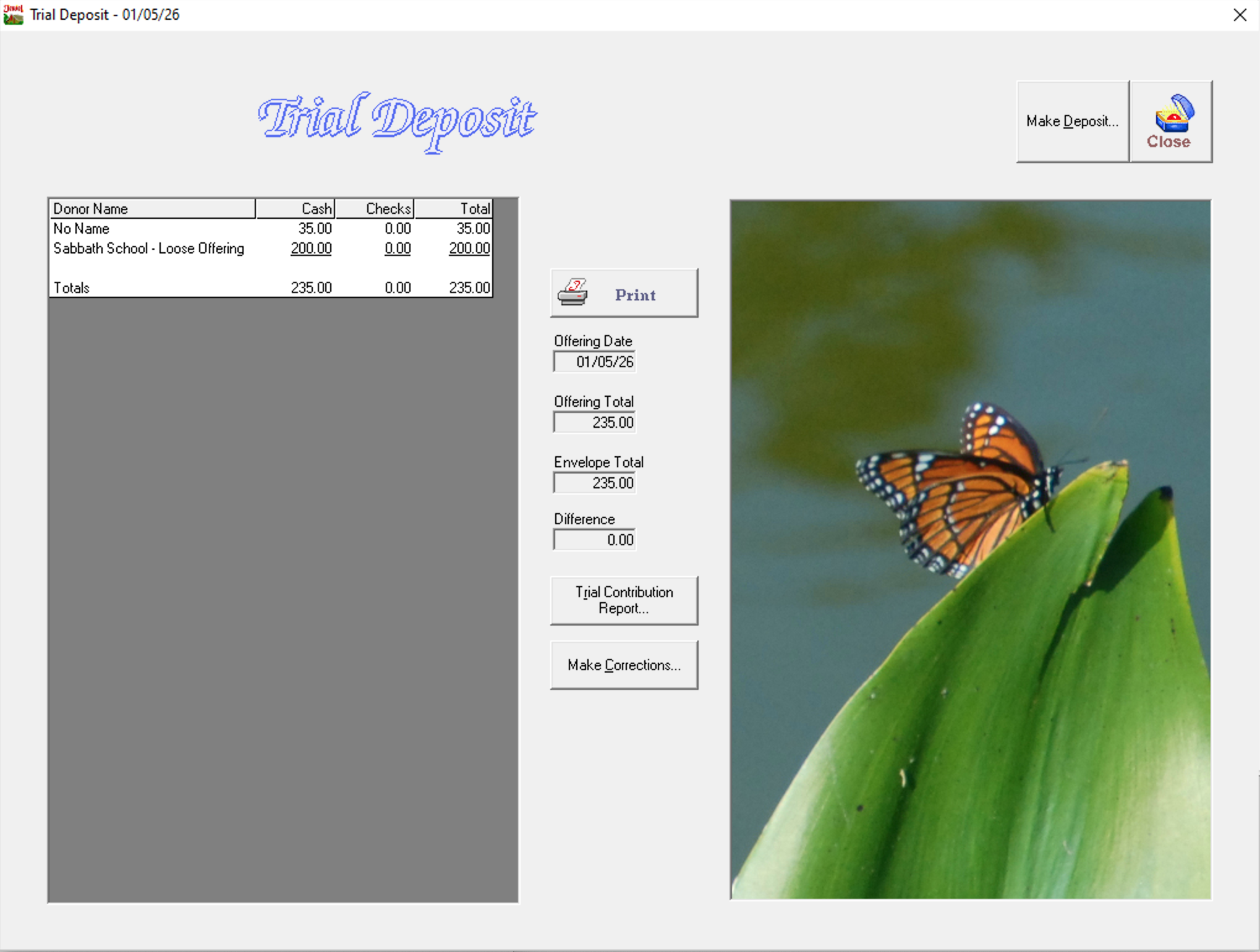
If you're having trouble getting the Amount Entered to equal the Offering Total, Trial Deposit (in the upper right corner of the Contribution Entry screen) will aid you in finding the problem. Compare your paper envelopes with the list of envelopes entered into Jewel on the Trial Deposit screen. If an envelope was mis-entered, click on that envelope in the list, click Edit Envelope, and make your corrections. If the problem is the offering total, click Make Corrections. Then check the Edit box at the top left of the Contribution Entry screen to change the deposit total. Or click Edit Deposit Slip, if you are using that feature, and make your corrections there. Once you are satisfied that all data has been entered correctly, click Make Deposit.
¶ Make Deposit
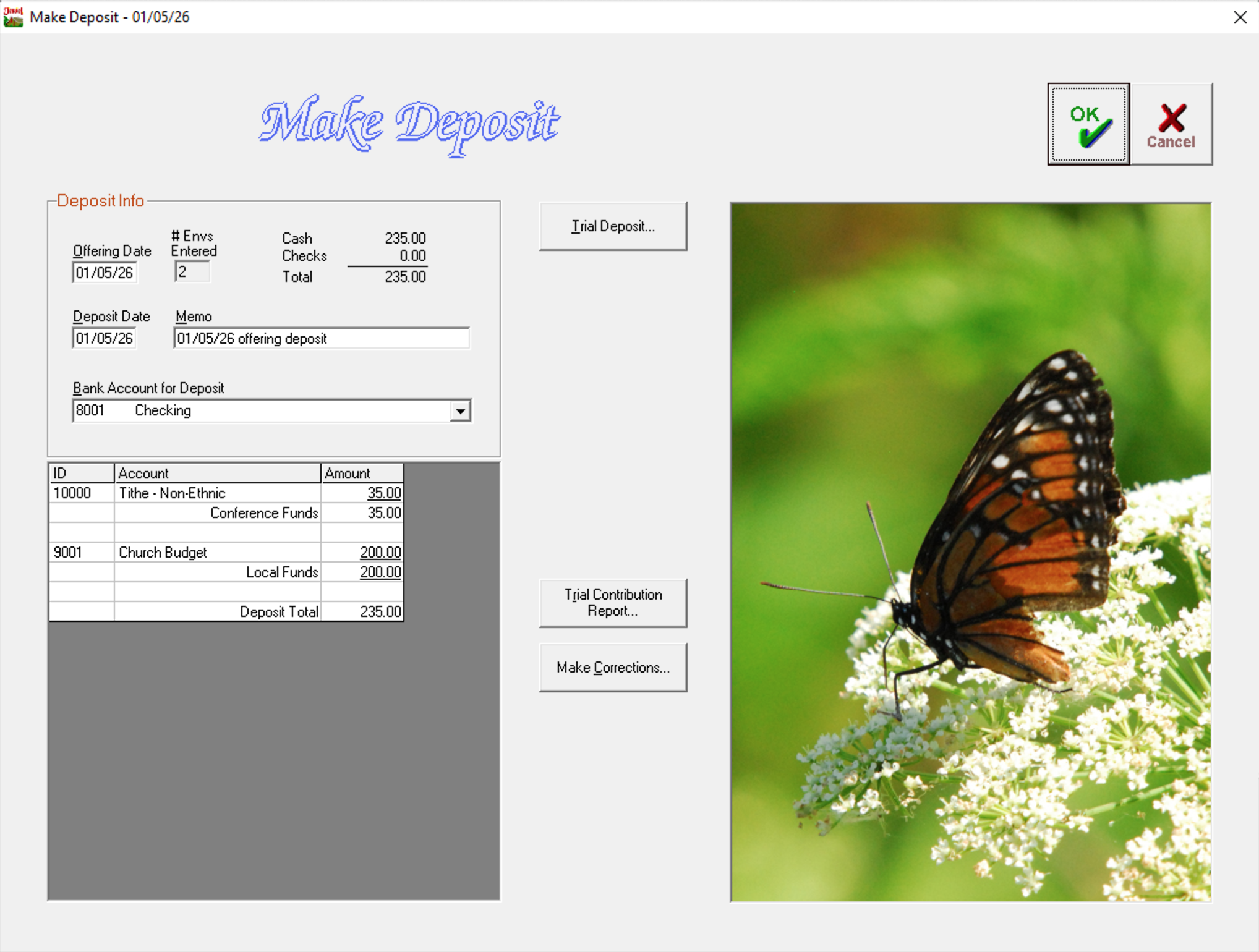
This step completes the process of entering your offering. Review the information shown on the screen. You can click Trial Deposit or Make Corrections if something is wrong. You can also change the deposit date, memo, and checking account information if necessary.
If all information is correct, click OK. Then Jewel will enter the total deposit amount into your checking account record, and distribute funds into your local and conference funds as indicated on each envelope. The envelopes entered will not actually appear on your reports in Jewel until this step has been completed.
Click here for more topics related to Quick Start Guide to Using Jewel