We hope you will find that Jewel makes your job as church treasurer easier, and perhaps even fun! Here's how to get help, what to expect Jewel to look like, and how to find your way around. Please take a quick look at this page. Then the Quick Start Guides at the bottom will show you how to handle the most common processes you'll do each month. If you are new to treasury work as well as to Jewel, read Quick Start Treasurer Training first.
¶ The NextStep Button - Your Guide
Welcome to the Jewel monthly cycle, guided by the NextStep button! We hope you will see how Jewel has made a fairly complicated process quite simple.
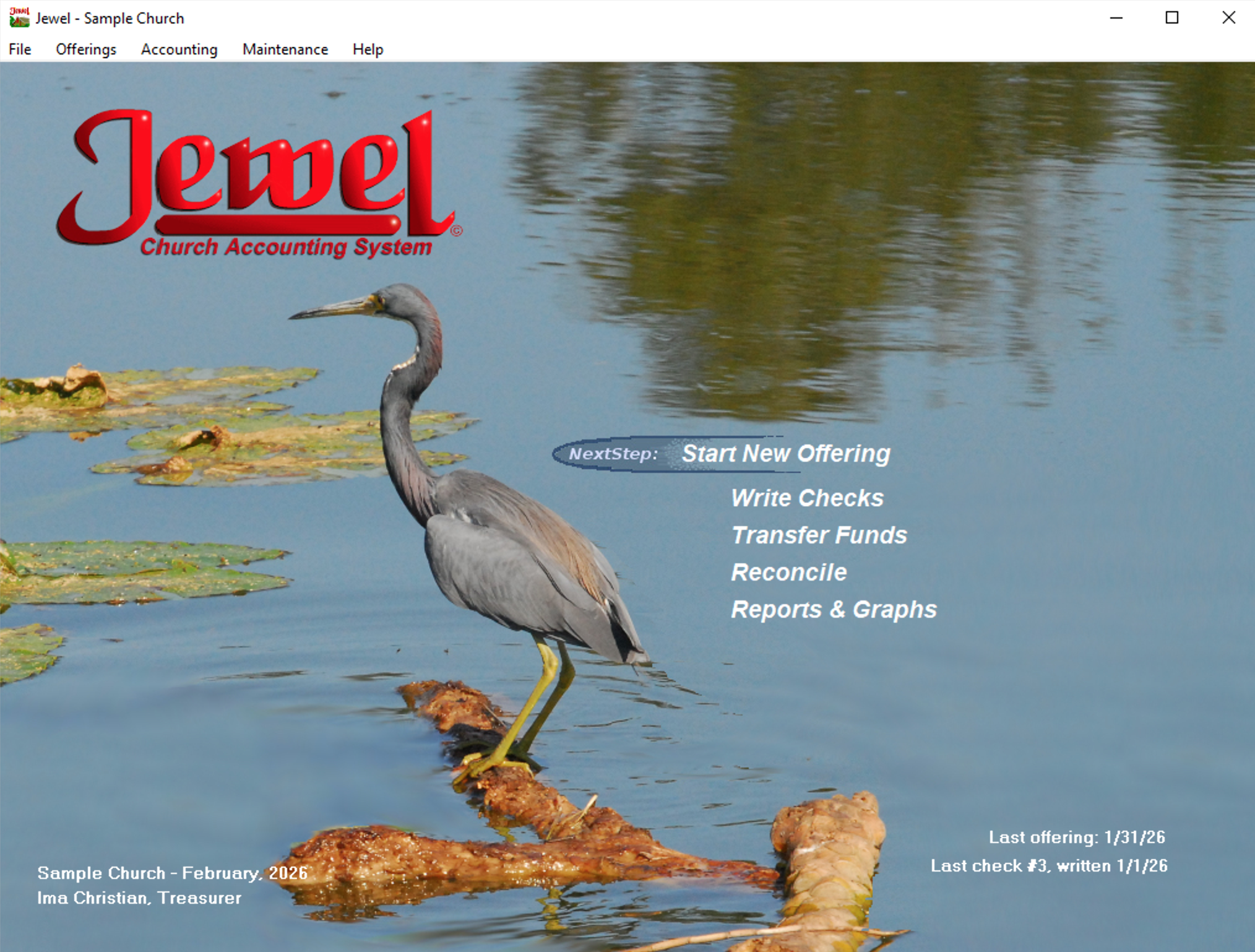
The NextStep button in the center of your Jewel Home Screen is your guide through the monthly accounting process. The item listed beside NextStep will change according to where you are in the accounting process - reminding you of where you left off and what your next step is. During most of the monthly cycle, that next step is Start New Offering. When it is time to close the month or the year, the NextStep button informs you of exactly which step to do next. The next sections of the handbook give detailed instructions on how to complete each step, if you need them. But most of the time, simply clicking the NextStep button will take you where you need to go.
When you don't know what to do next, try the NextStep button, even if it doesn't seem appropriate. You can always cancel if it really doesn't do what you need. But most of the time, the option you need will be there.
These are just some of the NextSteps you will see as you proceed through your month:




¶ One Month at a Time!!
Occasionally we hear: “Jewel is not user friendly.” “Jewel should let me do ____.” “Jewel is too complicated.” Or the opposite: “Jewel is too simple.” Usually it is from someone who does not understand how Jewel works, or why. Jewel is not perfect, but, like every software program, if you learn how it works and work with it instead of against it, it does exactly what it is supposed to do.
The most important thing to know about Jewel is that it only allows treasurers to work on one month at a time.

Look in the bottom left corner of your Jewel home screen to find out your current Jewel month. No matter what the calendar says, every offering you enter, every check you write, no matter what date you enter in Jewel, they will all end up being dated within that particular current Jewel month.
- Once you close a month, you cannot go back and fix anything in a previous month without assistance.
- Until you close your current Jewel month, you cannot jump ahead and work on a future month. Jewel will change any date you enter, posting it instead back into your current month. (The one exception is the option to allow checks dated in the next month.)
There are several important reasons for this:
- Fraud prevention. It makes it much more difficult for someone to “cook the books.” Once entered and closed, the record is permanent, and auditors can track the entries and edits.
- Most treasurers are not professional accountants. So, locking down the past and the future keeps them from accidentally making permanent changes that could be catastrophic.
- Some treasurers are professional accountants, but may not understand the difference between church accounting and business accounting, and might not know IRS rules for non-profits or denominational policy. So, they also could accidentally make changes that would not be in the best interest of their church.
- IRS regulations require that the church board have oversight. Once the board votes to accept a financial report for a particular month, the contents of that report are not to be changed without good reason and without a paper trail. Auditors know how to do that correctly, so they are allowed to make changes if needed.
- Each monthly unit is designed to balance and reconcile. All the conference offerings that come in during a particular month, go right back out in the remittance check during that same month. The board at its monthly meeting is supposed to be able to trust that all the expenses and income for that month have been entered, reconciled with the bank, and are accurate. Jewel is designed to make that happen.
When Jewel won’t let you do something you want to do, there is a reason for it, usually having to do with something in the above five categories. Knowing this may help you with your frustration at not being able to delete something, change something, or make a certain type of transfer. Or maybe it won't help. But Jewel still won’t let you do things that shouldn’t be done.
Your auditors and tech support can "time travel" to previous months when a database needs attention. In fact, we like to tell new treasurers that there is nothing you can mess up in Jewel that we can't fix!
Once you understand how Jewel works, you can sail through the month in the proper order, with a minimum of fuss and bother. It will take time, but it will happen. And you will move down the road towards clarity, accuracy and simplicity.
¶ Navigation Within Jewel
¶ Menu Bar
This menu is located across the very top of the window, with the items File, Offerings, Accounting, Maintenance, and Help. Click on each of these menus and notice the drop-down menus with many more options available to you. You can use these menus to access everything you need in Jewel.
¶ Quick Links
The processes you will be using the most, NextStep (see below), Write Checks, Transfer Funds, Reconcile, and Reports & Graphs, are listed in the middle of Jewel's Home Screen. They have been placed here for quick and easy access. Simply click, and the desired screen will open.
¶ NextStep Button
The NextStep button at the top of the Quick Links list is one of the features that sets Jewel apart from other accounting software. This button will guide you through the entire accounting process - all the way from entering offerings to closing out the year. The NextStep button changes according to where you are in the monthly and yearly cycle, telling you exactly what your next step should be. You don't need a list of steps to complete, because the NextStep button is there to tell you what to do.
¶ Common Buttons
Following is an explanation of various buttons and icons you will be seeing throughout Jewel:
This button is located in the top right corner of virtually every screen in Jewel. Click this button either when you are through viewing the screen (such as a Tip) or when you are finished entering your data (i.e. Write Checks, Contribution Entry). Clicking OK indicates that you are done with a particular process and would like to save the changes you have made. Clicking OK on a NextStep process will let the NextStep move to the next process in the accounting cycle.
Use this button to cancel the process you are working on. But be careful! Only click this button if you intend to lose the information you have just keyed in (the exception to this is the Bank Reconciliation, which gives an option to save your work when cancelling). This button is useful if you have perhaps entered something incorrectly and just want to start over. When you click Cancel on a NextStep process, that process will remain at the NextStep until you have completed it and clicked OK.

Click this button to close the window you are in, such as on a reports screen. You will also see the Close button in Contribution Entry. Note that your changes will NOT be lost by clicking Close. The NextStep button will bring you right back to the envelope where you left off.

Click this button to print the report, check, or any other screen you would like to print. Please make sure your printer is connected and has the appropriate paper loaded before clicking this button. You can also print to pdf.

You will find this symbol located to the right of data entry fields, such as in the Donor Name box in Contribution Entry. This symbol is a quick way to add a new name or account, depending on which field it is located on. Simply click the (+) button and you will be taken to either Edit Names or Edit Accounts, where you can add a new name or account. When you close the Edit Names/Accounts screen, you will be taken right back to where you were when you clicked the (+). Note that, instead of clicking (+), you may also type the full new name or account directly in the text box and press ENTER on the keyboard to get to Edit Names/Accounts.

This symbol is located beside fields for the selection of a name, account, etc. Clicking on the down arrow will open a drop down menu showing all of the options to choose from. When looking at the drop down menus for names and accounts, you will notice that they are listed both with and without the ID number attached. This is intentional, so that you can search by either ID number or alphabetically, whichever is more convenient. Or, instead of using the down arrow, you may just begin typing the ID number, name, or account in the text box. As you type, the program will find matches for what you are keying in. When the desired name/account appears, click Enter. Use whichever method is convenient for you.
¶ How to Get Help
Perhaps the most important question many of you may have at this point is, "So how do I get HELP?" You actually have lots of options.
¶ Jewel Wiki
Congratulations! You've already found the most up-to-the-minute Jewel helps. The Jewel Wiki contains the updated version of what used to be called the “Jewel Handbook”. This Wiki is meant to be your main source of support and information, both as you are first learning Jewel, and later on if you need to reference back or get further information.
¶ Tips
As you begin using Jewel, you will notice small dialog boxes with "Tips" popping up at various times. Pay special attention to each of these - at least the first time you see it! These dialog boxes give you tips regarding the particular step you are on in the process. Once you have read a Tip and know you will not need it again, click the box next to "Don't show this Tip again" located towards the bottom of the Tip dialog box. Again, don't ignore these tips - they will save you a lot of time in the long run!
¶ Auditor/Tech Support
Another way for you to get help is through your conference auditor or, if your conference has contracted with us for tech support, directly from Jewel. Please be sure to check this wiki for answers to your question BEFORE calling your auditor/tech support. This will save time both for you and your support. See Jewel Support Resources for contact information. Conference contact information can usually be found on your conference's website on the Auditing or Treasury department page.
¶ Email Tips
- Include your Church name
- Include your Conference name
- Send us your database (File / File Transfer / Send to Auditor), if you think we might need it.
¶ Send to Auditor Tips
Click here to see how (and how not!) to use Send to Auditor.
¶ Basic Quick Start Guides
Quick Start Treasurer Training
Receiving and Handling Sabbath Offerings
Quick Start Guide to Bank Reconciliations
¶ Other Quick Start Guides
Adding Missing Transactions Quick Start
Managing Your Accounts List - Quick Start
Managing Your Names List - Quick Start