You are sitting in a board meeting and someone asks a question. "Why is our electric bill so high this month?" Will you know how and where to find the answer in Jewel?
You could go to Reports and Graphs, click on Check which brings up the check report, change the date to the previous year, sort by payee, and look at what the electric bill was for this time last year. Then change the date to the year before that, and in seconds you could point out to them that over the last two years, the electric bill for this particular month has also been higher than the months around it.
Learning how to quickly find answers in Jewel to questions that arise make you an even more extraordinary treasurer. To do this, you need to know two things: which report to use and how to sort the information found in that report.
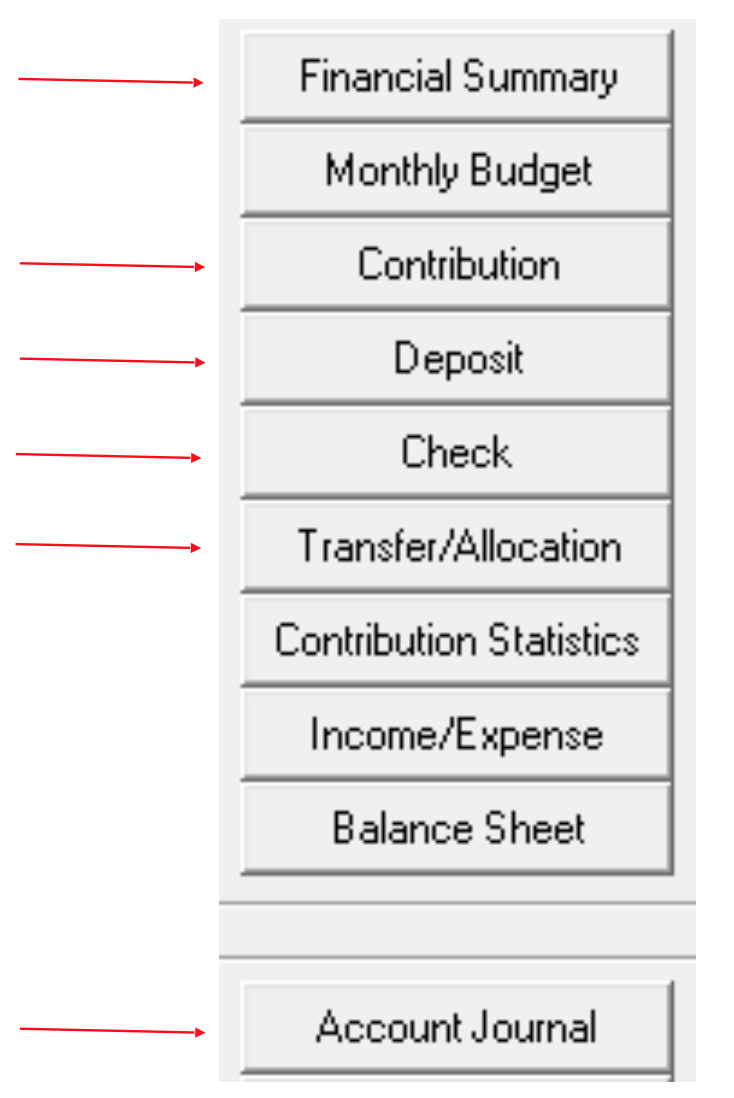
Click on Reports and Graphs on the Jewel home page. The reports that answer most of the questions you will encounter are these six reports in the top half of the list, marked in the screenshot to the right.
¶ Features Common to All/Most Reports
Date Sorting Feature: When you click on any of these reports, you will see data for the current month. One of the secrets to finding answers in Jewel is knowing how to use the date sorting feature, which is always on the top left of every report. By clicking on the down arrow, you can choose to show the data from any of the preset date ranges, including "All." Or, with the beginning and ending date boxes just to the right of the date range box, you can create custom date ranges.
Copy to Clipboard: Used to paste the report data to a spreadsheet.
Clickability: Any transaction shown on a report, such as a check, deposit, contribution, transfer, etc, can be clicked on to view the original transaction. Transactions with dates in the current Jewel month can then be edited.
Here is an overview of the 6 most-used reports.
¶ The Financial Summary
Once you know how to read it, the Financial Summary can quickly answer these basic questions.
- How much money do we have coming in?
- How/where is it being spent?
- How much is left that we can spend on whatever we need?
When you look at your Financial Summary, no matter how simple or complex, the “Account” names (bank, local and conference) are in a column on the left side of the report. The next five columns, from “Account” to “Ending Bal,” tell you everything you need to know about each particular account.
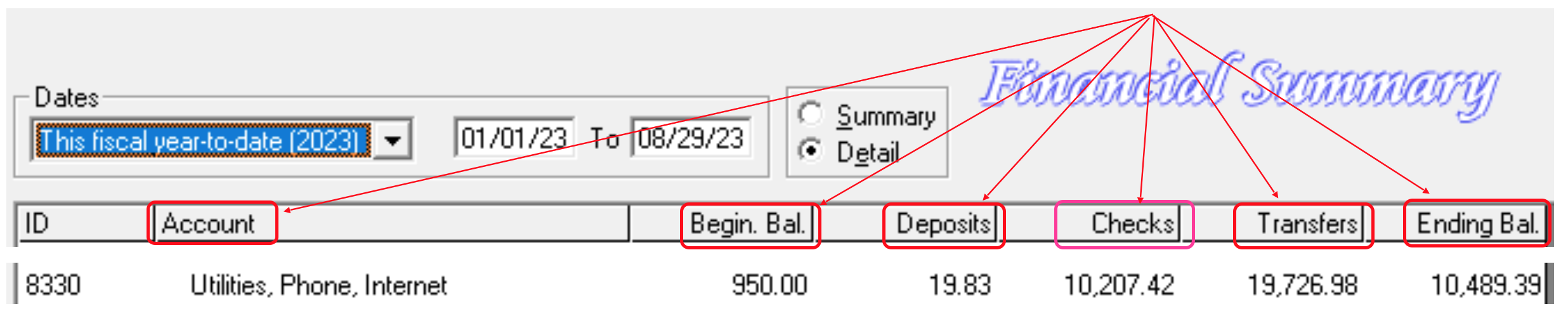
- Beginning Balance specifies how much is in this particular local account at the beginning of the date range at the top of the page.
- Deposits tells you how much was deposited into this local fund during the chosen period. Deposits are almost always offerings.
- Checks indicates the total amount of checks written out of this local fund during the indicated date range.
- Transfers gives a total of all the funds transferred in or out of this fund during the date range found at the top of the page.
- Ending Balance tells what is left in this local fund on the last day of the chosen period, after all the deposits, checks and transfers are added and subtracted.
Information about any bank account, local fund or conference fund can be learned by choosing a date range and following the numbers across from left to right.

One more option, “Summary or Detail,” appears to the right of the date boxes at the top of the Financial Summary. “Detail” shows sub accounts. “Summary” does not. Depending on how your local account list is constructed, the two reports may be the same. But in most churches, the Detail version is the one you will need to use when looking for information. For a deeper explanation of how the Financial Summary works, see Financial Summary 101.
Note: For each report below, individual transactions are clickable, giving you access to their details for viewing or editing.
¶ Contribution Report
This report shows who has donated and how much has been donated to a particular fund.
Data can be shown from “All Accounts,” or by entering a single account in that same field, you can see a detail of contributions to that particular account. “Dates” customization is an option, as always.
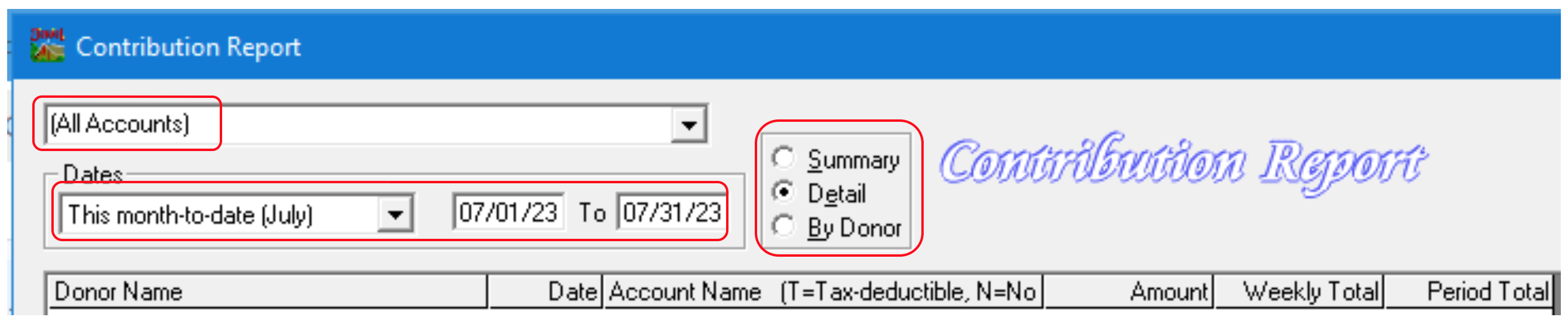
There are three versions of the Contribution Report available: A “Summary” version, which doesn't reveal donor names and is the only report that can be shown to the board, a “Detail” version, which gives donor names, dates and amounts, or a “By Donor" version, which is a shorter report with just one line for each donor.
¶ Deposit Report
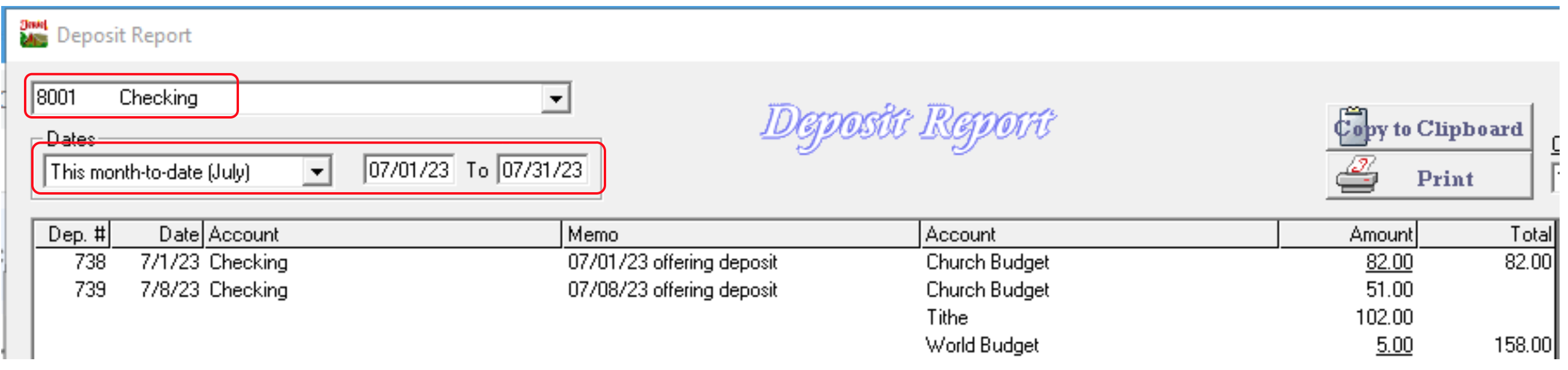
This report gives information on the deposits within the chosen period. You can choose the bank account and customize the date range as needed.
¶ Check Report
This report shows you all the checks in the chosen date range from the chosen bank account, and can be sorted either by Date, Check #, Payee or Account.

¶ Transfer/Allocation
If your church has set up monthly budget allocations, they will show up on this report. It will also list any transfers that are made between bank accounts or between local funds during the chosen date range.
¶ Account Journal
This report is extremely useful when you want to view all transactions to and from a particular local or conference fund. All the entries (deposits, checks and transfers) from the chosen date range will be listed and can be analyzed. To dig deeper into researching the history of a fund or account, see Account Journal.

Summary: It will take time to develop these skills, but learning how to access each Jewel report and how to locate the answers to any questions that arise will be invaluable to you as treasurer.
Click here for more topics related to Quick Start Guide to Using Jewel
Click here for more topics related to Reports
The original version of this page was provided to Jewel by the Georgia-Cumberland Conference Audit Team. Created by Linda McCabe.